

GPG Encrypt — an Obsidian plugin
Obsidian plugin that shells out to the OS’s GPG binary to encrypt selected text or a whole document, and decrypts it back in place.
What it is
An Obsidian plugin that performs encryption using the operating system’s native GPG tool. It supports either inline encryption of a selected block of text, or full-document encryption.
Configuration
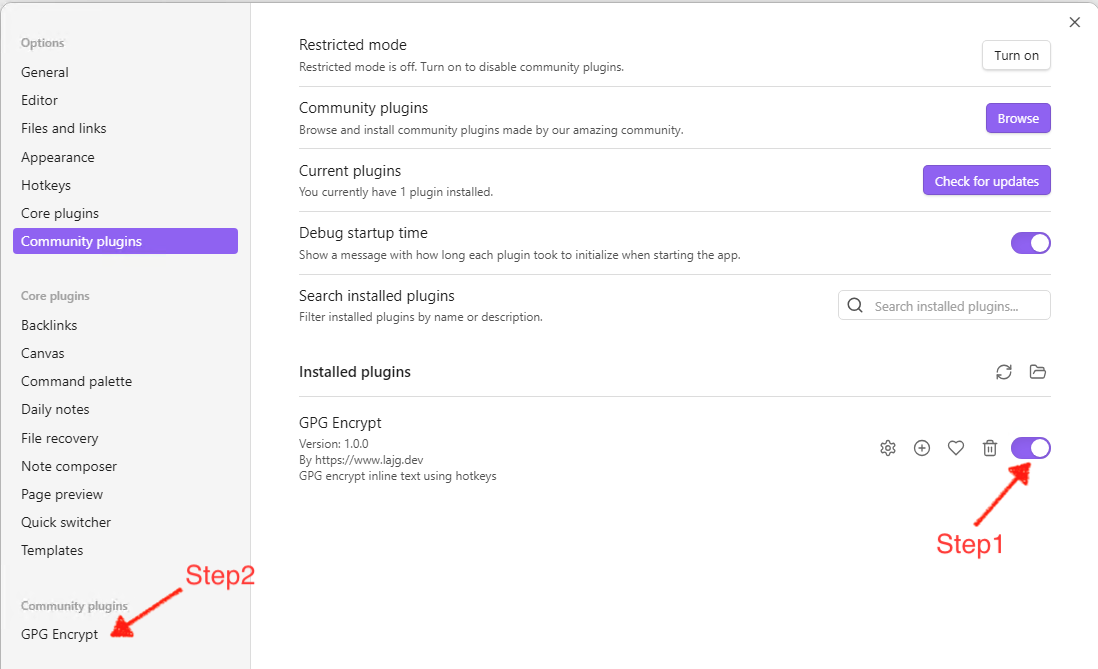
First, activate the plugin in Obsidian’s Community Plugins panel (1), then open the GPG Encrypt settings from the sidebar (2).
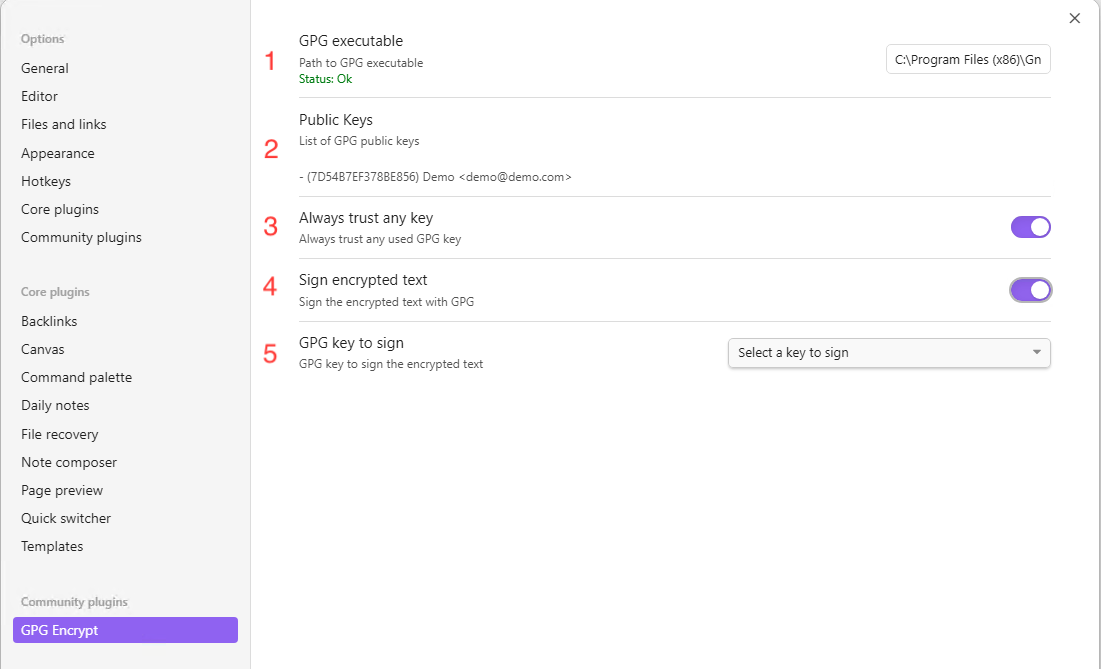
The plugin needs the full path to a GPG executable — gpg, gpg2, gpg.exe, or gpg2.exe. On Windows that’s usually something like C:\Program Files (x86)\GnuPG\bin\gpg.exe; on macOS it’s typically /usr/local/bin/gpg. The plugin validates the path in real time: it confirms that the executable exists and that it runs a GPG version.
Once the executable is set, the settings panel lists the GPG keys the plugin found in the operating system (for informational purposes).
Two flags govern behavior:
- Always trust the stored GPG keys regardless of their per-key trust level.
- Sign when encrypting. When enabled, a dropdown appears with the keys for which you have a private key — the selected key is used to sign text at encryption time.
Encrypting text
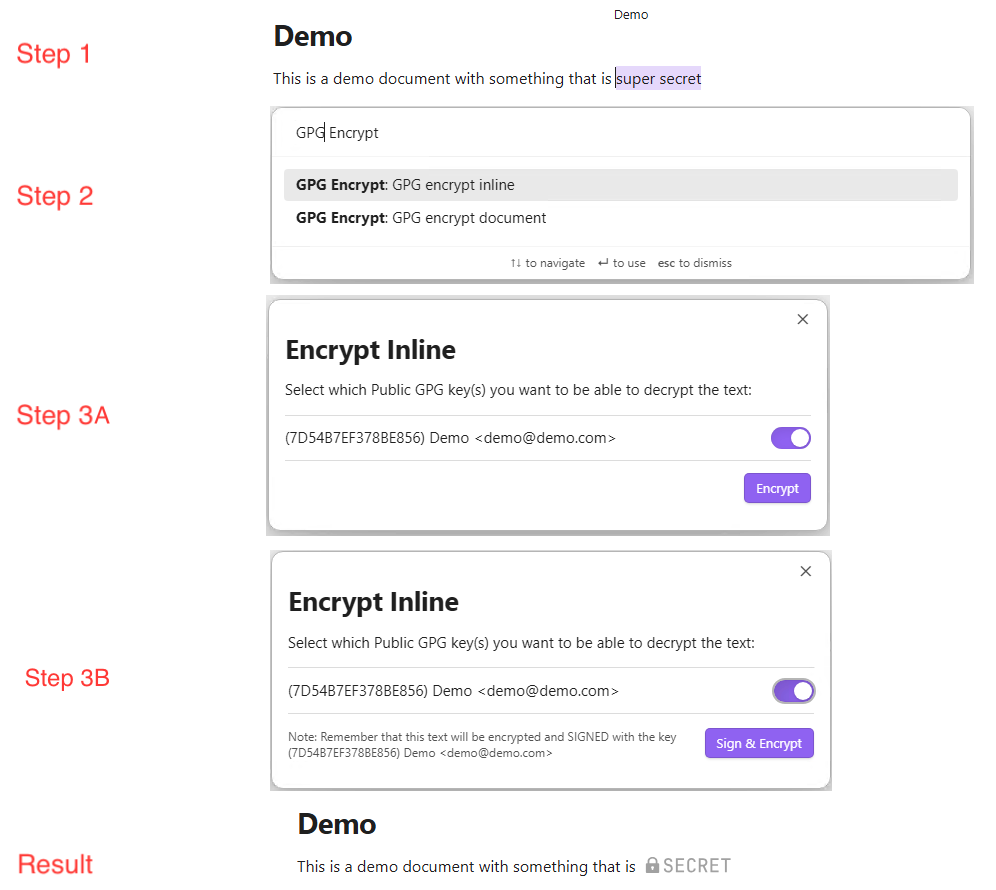
- Select the text you want to encrypt (for inline encryption) and open Obsidian’s command palette.
- Pick GPG Encrypt. You can choose inline encryption (the selected block) or full-document encryption.
- A popup lists the GPG keys available on your OS. Select one or more recipients — at least one is required.
- If signing is enabled, the button reads Sign and Encrypt, and you may be prompted for your passphrase to sign.
Decrypting text
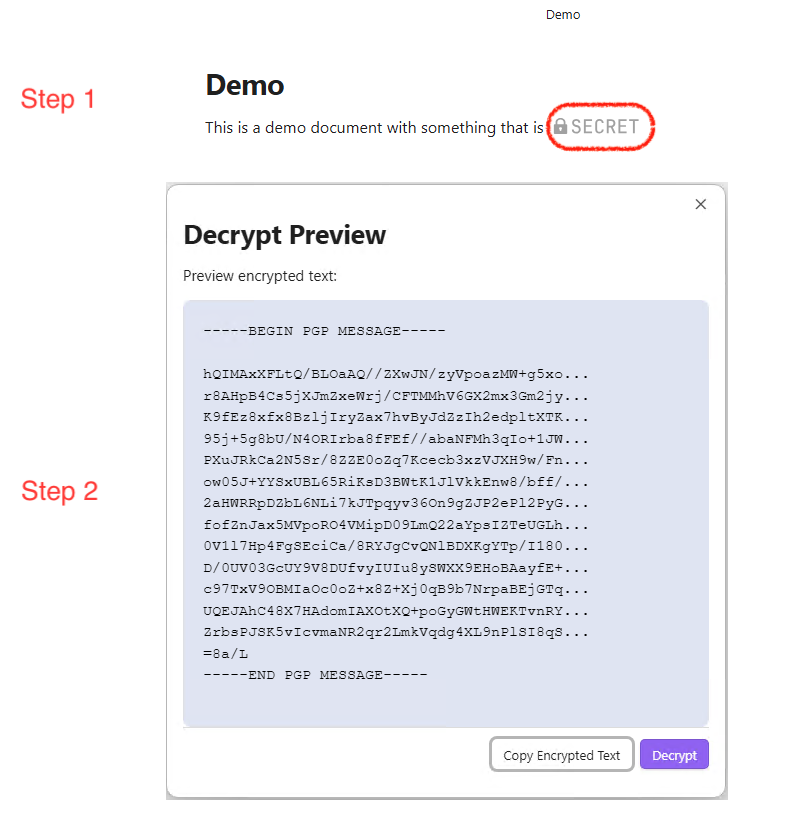
- In a note with an encrypted secret, click the image labeled
secret— it behaves like a button. - A modal opens with the encrypted message. From there you can Copy Encrypted Text, or start decryption with Decrypt, which may prompt for your passphrase.
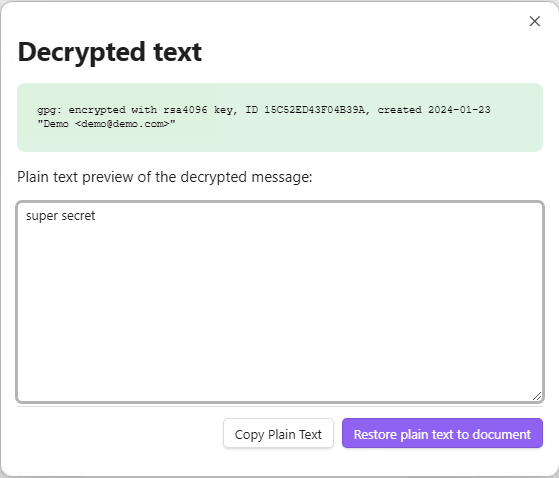
- Once decryption finishes, you get a green status message with technical information about the process, plus a text area with the plain text. You can Copy Plain Text, or use Restore plain text to document to put the decrypted text back into the note in place.
Credits
Prior art that informed this plugin: obsidian-inline-encrypter and obsidian-gpgCrypt.
Source
Repository: github.com/itslucho-com/Obsidian-Plugin-GPG-Inline-Encrypt.